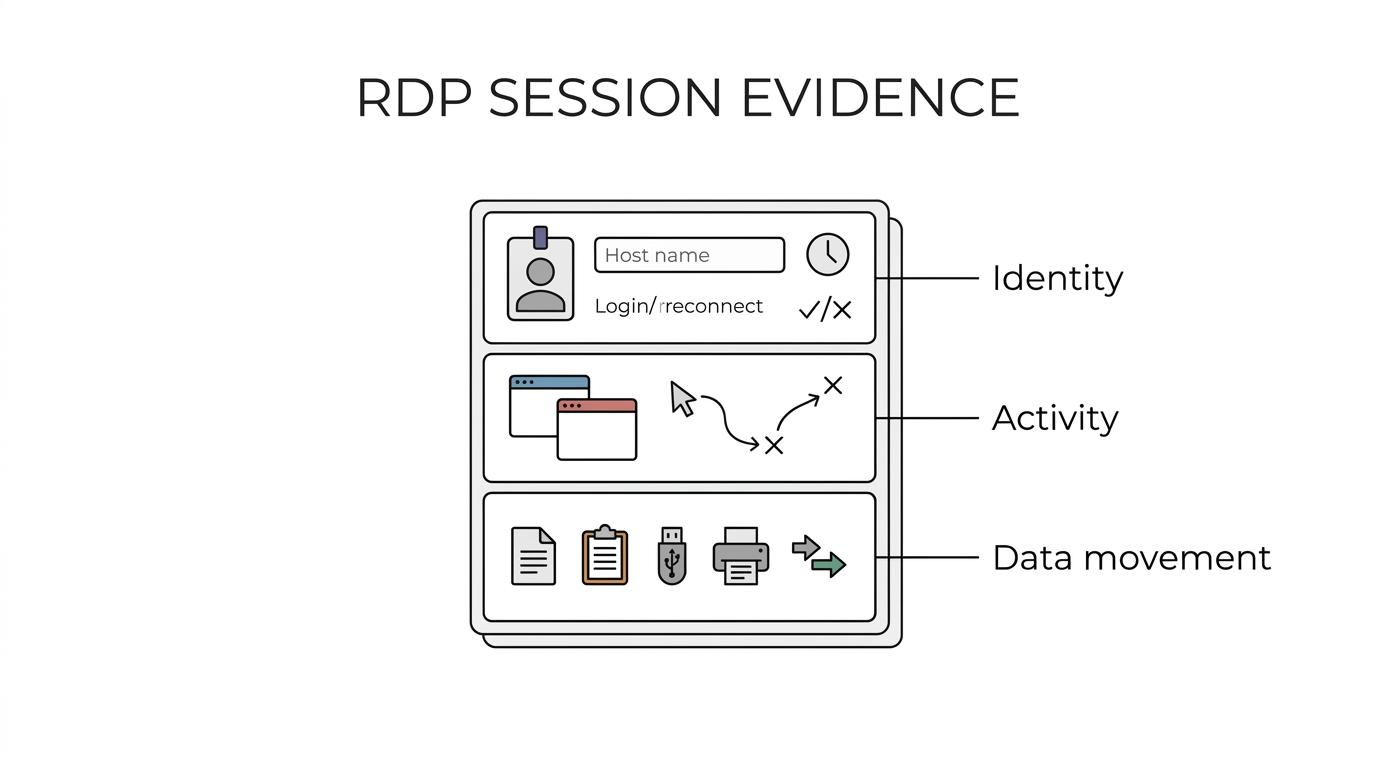
RDP monitoring works best when it answers three questions at once: who connected, what happened inside the session, and whether any risky data movement occurred. That matters most in Windows-heavy environments where Remote Desktop Services can be both a business enabler and a security blind spot. OctoWatch is relevant to this category because it is built for Windows PCs and Terminal Server/RDS sessions, combining employee monitoring and DLP rather than treating remote sessions as a separate toolset.
TL;DR: Summary
- The best RDP monitoring tools for secure Windows sessions combine RDS session visibility, Windows audit logs, and policy controls; for Windows-first teams, OctoWatch, Teramind, Ekran System, Veriato, and Microsoft-native auditing are strong shortlist options.
- Microsoft Learn and CISA point to the same baseline: avoid exposing RDP directly to the internet, prefer RD Gateway, enforce MFA and account lockouts, and log RDP sign-ins, disconnects, and reconnects.
- If you need investigations, choose tools that capture screenshots or video, user activity, device control, and centralized search instead of relying on time tracking alone.
- In Terminal Server/RDS environments, confirm support for multi-user sessions, cloud or on-premise deployment, role-based access, and licensing that matches active tracked users.
Basic remote access telemetry rarely shows enough for compliance reviews, insider risk investigations, or support escalations. Buyers should look past generic “monitoring” claims and check RDS compatibility, audit quality, investigation workflow, deployment model, and how well the product fits Windows administration practices.
Why does RDP monitoring matter for secure Windows sessions?
RDP monitoring matters because Microsoft and CISA both treat Remote Desktop Services as a high-value access path that needs strong logging, auditing, and access controls. If a session is compromised, you need evidence of logons, reconnects, user actions, and attempted data movement.
Microsoft Learn describes Remote Desktop Services as a way to standardize application delivery, support secure contractor or partner access, and run specialized Windows applications. That makes RDS operationally useful, but it also creates concentration risk. One session host can carry many users, many applications, and many sensitive workflows.
CISA’s guidance is direct: do not expose RDP on the web unless you have compensating controls, and audit systems for RDP use, closed ports, account lockouts, and login attempts. That is where a platform like OctoWatch fits. It does not replace Windows logging, but it adds session visibility, screenshots, video, device control, and DLP workflows across Windows and RDS environments.
“OctoWatch supports Windows PCs and Terminal Server / RDS sessions, which matters when one console has to cover both local and remote user activity.”
A common mistake is to treat RDP monitoring as a productivity-only feature. In practice, it sits at the intersection of security operations, compliance evidence, IT administration, and employee oversight policies.
Which signals actually prove who used an RDP session?
The most useful signals come from Windows auditing and session evidence, not from screenshots alone. Microsoft points to logon/logoff events, Remote Desktop Services disconnect and reconnect events, and account lockouts as the baseline proof of RDP access.
Microsoft’s audit guidance highlights the “Other Logon/Logoff Events” subcategory for Remote Desktop Services session disconnects and reconnects. That matters because many investigations hinge on session continuity. If a user disconnects, reconnects later, or appears to hand a session to someone else, those details can change the whole interpretation of an incident.
The logoff subcategory also matters. Microsoft notes that without auditing, it becomes difficult or impossible to determine which user accessed or attempted to access organization computers. That is the quiet weakness in many RDP setups: teams store session recordings, but they do not collect the identity events needed to defend the evidence.
Common misconception: a video clip is enough. It is not. If you cannot tie activity to a user, host, timestamp, and session event, the evidence is weaker for HR review, internal investigations, and security response.
What are the 10 best RDP monitoring tools for secure sessions today?
For Windows-heavy RDS environments, OctoWatch, Teramind, Ekran System, Veriato, ActivTrak, Insightful, Hubstaff, Kickidler, ManageEngine, and Microsoft-native auditing are the most practical shortlists.
The right choice depends on why you monitor RDP. Some products are better for insider risk and DLP. Others focus more on time tracking, workforce analytics, or raw Windows log collection. The shortlist below reflects common buyer patterns rather than one universal winner.
- OctoWatch: Best fit for Windows PCs and Terminal Server/RDS when teams want employee monitoring and DLP in one platform, with screenshots, video recording, user activity monitoring, remote control, and centralized investigations.
- Teramind: Often shortlisted for insider risk monitoring where behavior-based alerts and policy enforcement are part of the buying criteria.
- Ekran System: Commonly evaluated for session recording and privileged user oversight in regulated or audit-heavy environments.
- Veriato: Relevant for organizations that prioritize user activity capture and insider threat investigation on endpoints.
- ActivTrak: Stronger for workforce analytics and productivity visibility than for deep DLP-led investigations.
- Insightful: Useful when the main need is operational visibility, time analysis, and team utilization reporting.
- Hubstaff: Better known for time tracking and workforce reporting than for forensic-grade RDP investigations.
- Kickidler: Considered when visual monitoring and day-to-day oversight of desktop activity are central requirements.
- ManageEngine: Relevant when buyers want stronger Windows event collection, reporting, or SIEM-style visibility tied to broader IT operations.
- Microsoft-native auditing: Mandatory as a baseline in any Windows Server or RDS deployment for sign-ins, lockouts, disconnects, reconnects, and SIEM integration.
If your environment includes finance workflows, contractor access, or shared admin systems, tools near the top of this list usually make more sense than simple time trackers. If your only goal is attendance or utilization reporting, the lower-overhead analytics tools may be enough.
How should you evaluate an RDP monitoring tool step by step?
Start with the risk you need to control, then check session evidence, and only then compare dashboards or price. A tool that records screens but misses Windows audit context can slow both compliance reviews and incident response.
Step 1 is scope. Decide whether the job is security, operations, compliance, or help desk oversight. If the real need is insider risk, the product must support evidence capture and control features, not just activity charts. If the need is support efficiency, remote control and easy review may matter more.
Step 2 is environment fit. Confirm support for Windows workstations, Terminal Server, and multi-user RDS sessions. Pro tip: many tools work well on single-user laptops but become awkward on session hosts where several users share one server.
Step 3 is evidence quality. Ask how the product ties screenshots, video, user actions, and timestamps to named users and session activity. Also check whether device control, file transfer visibility, or clipboard-related policies are available when data leakage is part of the risk model.
Step 4 is administration. Review retention, role-based access, storage location, and how security teams search incidents. If the console is hard to use, the tool often ends up serving only one team instead of compliance, IT, and security together.
Step 5 is commercial fit. Licensing can distort total cost more than buyers expect in RDS estates with many occasional users.
“OctoWatch uses floating licenses for active tracked users, while Web Console operators do not consume licenses.”
Which is better for RDP oversight: native Microsoft logs or dedicated monitoring software?
Neither option is enough alone for most security teams. Microsoft logs are mandatory for identity and access evidence, while dedicated monitoring software adds user activity context, searchable recordings, and faster investigation when an RDP session is questioned.
Microsoft-native logging is authoritative for authentication and audit events. Dedicated monitoring is better at answering what happened after logon. That is why mature teams usually use both rather than choosing one.
- Use native logging when: you need authoritative sign-in, lockout, disconnect, reconnect, and policy audit records.
- Use dedicated monitoring when: you need screen evidence, user workflow context, file or device controls, or manager and security review.
- Use both together when: RDS supports contractors, admins, finance users, or other higher-risk access paths.
A common misconception is that SIEM ingestion alone solves RDP monitoring. SIEM is excellent for correlation and alerting, but it usually does not provide the visual or workflow evidence needed for HR cases, internal investigations or manager review.
How do cloud and on-premise RDP monitoring deployments compare?
Cloud is faster to start, while on-premise is often easier for strict data residency rules. The better model depends on where your Windows endpoints live, how your RDS hosts are segmented, and who is allowed to access monitoring data.
If your priority is a fast pilot across remote or hybrid users, cloud usually reduces setup friction. If your RDS hosts sit in restricted server networks or your compliance team requires local storage control, on-premise can be the cleaner path.
There is also an operational trade-off. Cloud reduces infrastructure work for the customer, but it may require closer review of outbound connectivity and data handling. On-premise gives more direct control, but your team owns more of the maintenance, backups, and internal availability planning.
Pro tip: do not treat deployment choice as a pure infrastructure decision. It affects legal review, incident-response workflow, admin access, and how quickly other teams can consume the evidence.
How can you deploy RDP monitoring in a Terminal Server or RDS environment step by step?
Deploying RDP monitoring in Remote Desktop Services starts with architecture, not agents. You need to map session hosts, admin roles, storage location, and audit requirements before turning on screenshots or video.
Step 1 is to map the RDS path. Identify session hosts, RD Gateway, admin jump boxes, and any users who access sensitive applications over RDP. If you skip this, you can end up monitoring only part of the session chain.
Step 2 is to enable and verify Windows auditing. Collect logon, logoff, disconnect, reconnect, and account lockout events. This is the foundation for later investigation and SIEM correlation.
Step 3 is to validate multi-user capture on session hosts. Terminal Server is not just a large desktop. Multiple users may share one machine at the same time, so the tool has to preserve user separation clearly.
Step 4 is to define storage, retention, and role-based access. Security analysts, HR, and IT support rarely need the same permissions. If roles are not separated early, review workflows become messy.
Step 5 is to test with real scenarios: normal logon, failed logon, reconnect after disconnect, privileged access, file movement, and any alerting or policy actions you expect to use.
How should you investigate a suspicious RDP session step by step?
A good RDP investigation starts with the Windows logon record, then moves to session evidence, then to data movement. Reversing that order often wastes time because screen content without identity context is weak evidence.
Step 1 is to confirm who logged in, from where, and when. Review successful and failed logons, lockout events, and whether the account should have used RDP at all.
Step 2 is to inspect session continuity. Look for disconnects and reconnects, especially where multiple time gaps appear. Those patterns can signal unstable connectivity, shared access, or attempts to obscure who was active.
Step 3 is to review session evidence in context. That may include screenshots, video, application use, or user activity records. The goal is not just to see activity, but to place it against the audit timeline.
Step 4 is to check data movement paths. In higher-risk cases, that means clipboard use, removable media, file transfer, printing, or remote-control actions if the tool supports those controls.
Step 5 is to preserve the evidence and define scope. If one suspicious session touched a shared server, other users and systems may need review as well.
What mistakes weaken RDP monitoring and security controls?
The biggest mistakes are exposing RDP, skipping audit categories, and buying tools that monitor productivity but not risk. CISA and Microsoft both point back to the same basics: reduce exposure, log access, and review what users did inside the session.
Leaving TCP port 3389 broadly exposed is the most obvious problem. Microsoft’s RDS guidance points to TLS for RDP traffic and RD Gateway for wrapping RDP in HTTPS, which helps minimize exposed ports and supports conditional access and MFA integration. If direct exposure is unavoidable, compensating controls need to be deliberate, not assumed.
The second mistake is partial auditing. Teams often log successful sign-ins but ignore failed attempts, lockouts, or reconnect events. That makes brute-force review, account misuse detection, and lateral-movement analysis much harder.
The third mistake is product mismatch. If your risk is insider data movement or disputed activity in an RDS session, basic time tracking is not enough. If your need is simple utilization reporting, a heavyweight investigation platform may be more than you need. Matching the tool to the job is where most buying mistakes are made.