
DLP Rules & Alerts for Windows Endpoints
Set conditions and actions in a Rules profile: notify in Risks, show a message, block traffic or file operations, end an app, clear the clipboard, or run a command. Saved changes usually take effect within about five minutes.

Engine
Rules profiles (conditions → actions)
Alerts
Risks + email when configured
Starter set
About 18 example rules
Deploy
Cloud & On-Premise · Windows / RDS
Monitoring shows what happened. Rules decide what to do next.
Recording activity alone does not stop a bad transfer. With DLP rules and alerts, you define when something matches a condition and what OctoWatch should do: notify your team, show a message to the user, block network traffic or file operations, terminate an application, clear the clipboard, log the user out, shut down the PC, or run a command or PowerShell script.
The Grabber records what each Settings profile allows. Rules profiles apply the response. When a rule uses Notify, the hit shows up in the Web Console Risks tab, and email can go out if Account notifications are set up. This page covers how to build and assign those rules. For the broader DLP picture, see Data Loss Prevention. OctoWatch is Windows endpoint monitoring with Rules enforcement—not a CASB product and not Microsoft Purview content DLP.
How a rule runs
Every rule has one object type, conditions (combined with AND or OR), one or more actions, and an optional weekly schedule. After you save the Rules profile, changes take effect within about five minutes.
1
A condition matches
Depending on the rule type: URL, file operation, typed text, email attachment, clipboard content, OCR text, and similar fields.
2
Actions run
Notify, Show message, Block network traffic, block file operations, Terminate application, Clear clipboard, Log out, Shut down, or Run command / PowerShell.
3
Risks records the hit
With Notify selected, Risks shows the rule name and description you entered—the same wording used in notification email.
4
You investigate
Open the user at that time from Risks, then move into Screens, Day Viewer, Files, or Live as needed. More on triage: Risks & Anomalies.
What you can match
Pick an object type when you create a rule, then add fields and operators. You can require every condition (AND) or any of them (OR), including time thresholds—for example, only after someone has stayed on a site for N minutes. The links below go to channel detail pages; this page is about when policy fires.

Web
Sites / URL
URL, website category, search query, window title, time on site. Use with website filtering when you need blocks.
Files
Files & sharing
File name, size, operation, removable or shared flags, device ID, plus file-sharing URL and file fields. See file, USB & print.
Input
Keystrokes & clipboard
Text, application name, category. Details: keystroke logging and clipboard monitoring.
Comms
Email & chat
Sender, recipient, subject, body, attachments, and chat text. Module: email & IM monitoring.
Apps
Applications
Application name, category, window title, and time in the app—then notify, show a message, or terminate.
Content
Print & OCR
Printer name, file name, page count, and OCR text. OCR depth on On-Premise uses the Recognition Server.
Actions and what must be on for blocks
Available actions depend on the object type. To block websites or files, turn on the matching filter in the Computer Profile. If the filter is off, the rule can still notify while the transfer goes through.
| Action | What it does | Prerequisite |
|---|---|---|
| Notify | Adds a hit in Risks using the rule name and description. | None for the Risks row. Set Account email or Telegram for outbound alerts where those options apply. |
| Show message | Shows your text to the user when the rule fires. | None |
| Block network traffic | Stops matching web, email, chat, or file-share traffic for that rule type. | Internet traffic filtering in the Computer Profile |
| Block file operations | Blocks create, delete, move/rename, read, or write for matching files. | File operations filtering in the Computer Profile |
| Terminate application | Ends the matching application process. | Applications rule type |
| Clear clipboard | Clears the clipboard when a clipboard rule matches. | Clipboard rule type |
| Log out / Shut down | Ends the Windows session or powers off the computer. | Use only for high-impact policies |
| Run command / PowerShell | Runs the command or script you provide. | Test the command before you assign it widely |
USB: There is no action literally named “Block USB.” For a hard stop, use Settings Profile options to block reading from or writing to removable drives. For conditional control, use Files rules with File operations filtering. See file, USB & print monitoring.
Start with notify, then tighten. Run Notify (and Show message if you want) so Risks reflects real work. After you cut false positives, enable Internet traffic filtering or File operations filtering and turn serious rules to block. Broad file rules can slow a PC, so keep paths and operations specific.
Example policies
Clone from the starter examples or build these patterns yourself. Each one is a clear condition and response.
Time-limited site access
Sites / URL plus Time greater than N minutes (AND) → Block network traffic and Notify. Allow a short visit, then cut access after the limit.
Keyword watch list
Keystrokes text contains a watch word → Notify, with an optional Show message. The named hit appears in Risks after the profile applies.
Outbound attachments
Outgoing email with attachment present, name, or size → Block network traffic and/or Notify. Internet traffic filtering must be on for a hard stop.
On-screen warning
Any matching rule → Show message with your own text (for example, “This site is not allowed. Contact your administrator.”) while Notify keeps an audit trail.
You can also start a rule from Activity, Chronometry, Risks, or related views: add the object as a condition instead of filling every field from scratch.
Starter examples and custom profiles
The default set includes about eighteen example rules, so you are not starting from an empty list. Clone a Rules profile under Profiles and Access, rename rules so Risks stays easy to read, then assign the profile to users or groups from the Users tab (Override Profiles). Custom rules use the same editor: object type, conditions, actions, and an optional weekly schedule (for example, weekdays only).
A Schedules profile (work hours, or “record only during work hours”) is not the same as a rule’s optional schedule grid. Use Schedules for when monitoring runs. Use the rule schedule when one policy should fire only in certain hours.
| Profile | Role |
|---|---|
| Settings | What the Grabber records (activity, keystrokes, clipboard, screens, mail, files, and more) |
| Rules | When to notify, message, block, terminate, clear the clipboard, run a script, log out, or shut down |
| Computer | Internet traffic filtering, File operations filtering, Print filtering, and blacklists that make blocks work |
| Schedules | Work hours, breaks, and attendance windows—separate from a single rule’s schedule |
Alerts in Risks
Rule hits are day-to-day policy alerts. They are not the same as Deviations or Anomalies analytics.
With Notify on, Risks lists date and time, user, rule name, description, and details. Give rules clear names: that text appears in Risks and in notification email. From a row you can open the user’s activity at that moment, then continue in Screens, Day Viewer, Files, or Live. Account settings can send selected Risks and deviations notices by email or Telegram. A Risks row does not always mean an email went out—check that notify is enabled for the alerts you care about.
| Approach | What you get | Best for |
|---|---|---|
| Looking back later | Browsing Activity, Screens, or reports after the fact | Audits, spot checks, disputes |
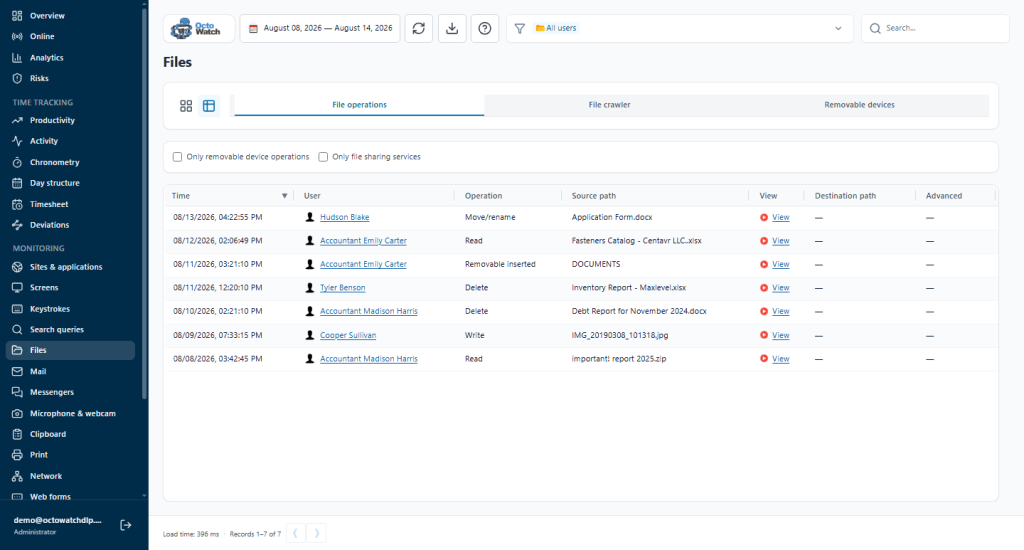
| Rule-triggered alerts | A condition match that writes to Risks (and optional email) with a named policy | USB and file policy, web uploads, keyword hits, blocked apps |
Keep Risks useful: do not fill it with low-value hits. Lateness, unproductive spikes, and similar patterns belong under Deviations and Anomalies—see Risks & Anomalies.
How to turn rules on
Cloud and On-Premise use the same Rules model. Put the Grabber on the Windows PCs and terminal-server sessions you need to cover.
1
Install the Grabber
Create a Cloud account or finish Server and Admin setup on-premise, then deploy Grabbers to endpoints and RDS hosts.
2
Enable Computer filters
Turn on Internet traffic filtering and/or File operations filtering before you expect block actions to stop transfers.
3
Assign a Rules profile
Start from the example rules or create your own. Assign the profile to users or groups, then wait about five minutes after you save.
4
Confirm in Risks
Trigger a test condition, open Risks, and check the name, description, and View. Turn on email notify if you want outbound alerts.
Common use cases
Security and IT teams use the same Rules engine on office PCs and RDS sessions.
File and removable media risk
Files rules with operation and removable conditions plus File operations filtering, or a Settings Profile block on removable read/write for a hard stop.
Risky sites and file-share uploads
Sites / URL or file-sharing rules with Block network traffic after Internet traffic filtering is enabled.
Keyword and email policy
Keystrokes, clipboard, or email conditions with Notify and Show message for finance, legal, or HR watch lists.
Stop a prohibited app
Applications rules that terminate the process, log the user out, or shut down the PC when a blocked executable launches.
Practical tips
- Write clear rule names and descriptions. They show up in Risks and in notification email.
- Prefer Notify (and Show message) first. Turn on Computer Profile filters before you rely on blocks.
- Choose AND or OR with care. Wide file conditions can slow endpoints—narrow paths and operations.
- Keep Risks readable. Avoid rules that fire constantly on normal work.
- Use a per-rule schedule for after-hours or weekday-only policies. Use Schedules profiles for overall monitoring hours.
Plans and deployment
Full DLP rules belong with the Employee Monitoring plan, not Time Tracking alone. Web Console operators are unlimited and do not use licenses. Floating licenses count active tracked users. The same Rules model runs in Cloud and On-Premise; only data custody changes. See Pricing for terms.
Frequently asked questions
Why didn’t my block work?
Website and network blocks need Internet traffic filtering. File and removable control need File operations filtering. Without those Computer Profile options, Notify can still write to Risks.
Can I notify without blocking?
Yes. Choose Notify, and Show message if you want, without block actions. Many teams watch Risks for a while before they harden rules.
Does every Notify send email?
Notify always creates a Risks entry when it is selected. Email and Telegram depend on Account notification settings. Rule name and description appear in Risks and in the notification text.
How fast do rule changes apply?
Rules profile changes take effect within about five minutes after you save. Some Computer or Settings changes in other guides can take longer, up to about fifteen minutes.
Are example rules included?
Yes. The default set includes about eighteen example rules. Clone and edit them, or build custom rules from scratch.
How is Risks different from Deviations or Anomalies?
Risks holds rule hits and related system alerts. Deviations and Anomalies cover patterns such as lateness or unproductive spikes. See Risks & Anomalies.
How do I block USB?
Block removable read/write in the Settings Profile, and/or use Files rules with File operations filtering. There is no single action labeled “Block USB.”
Is this Microsoft Purview or network DLP?
No. OctoWatch is a Windows Grabber and Web Console for endpoint monitoring and Rules enforcement in Cloud or On-Premise. It is not an M365 content classifier or a network DLP appliance.
How does this differ from website filtering?
Website filtering focuses on the traffic-filter channel. This page covers the full Rules engine across apps, files, email, keystrokes, clipboard, print, OCR, and more.
Do Cloud and On-Premise use the same rules?
Yes. The Rules profile model is the same. On-Premise keeps data on your servers and can add the Recognition Server for OCR-backed keywords.
Need help with Rules profiles or Computer Profile filters? See the User guide (Rules Profile) or email support@octowatchdlp.com.
Related reading
Try DLP rules on your Windows endpoints
Start a trial, assign a Rules profile, and check hits in Risks.