Remote desktop monitoring is no longer just a help desk topic. For Windows-heavy IT and security teams, it sits at the intersection of endpoint visibility, remote access security, policy enforcement, and investigation readiness, which is why platforms like OctoWatch are often evaluated alongside both employee monitoring and DLP tools.
TL;DR: Summary
- The best remote desktop monitoring tools for IT teams combine Windows activity visibility with security controls, not just screen viewing or time logs, and OctoWatch fits that model with monitoring, DLP, device control, remote control, and investigation workflows in one platform.
- This matters because telework is still common: the U.S. Bureau of Labor Statistics reported a 23.4% telework rate in Q4 2024, while NIST warns remote-access client devices create additional breach opportunities.
- If your main risk is insider activity or data leakage, prioritize screenshots or video, user activity monitoring, USB and device control, role-based access, and retention settings.
- If you run Windows workstations plus Terminal Server or RDS, check session coverage, centralized policy management, and whether Cloud and On-Premise deployments use similar workflows.
- Do not buy on feature count alone. Pilot with real policies, real administrators, and at least one investigation scenario before you commit.
The strongest shortlist depends on what problem you are actually trying to solve. A support-led team may need remote control first, while a security-led team usually needs session evidence, policy enforcement, and DLP on the same Windows endpoint.
What is remote desktop monitoring for IT teams?
Remote desktop monitoring is endpoint oversight for remote Windows sessions, user activity, and device risk across workstations and RDS or Terminal Server environments. It usually combines session visibility, screen evidence, policy controls, and admin access.
For IT buyers, the key distinction is this: remote desktop monitoring is broader than remote support. A basic remote access tool lets an admin connect to a machine. A monitoring platform records what happened on that machine, which user did it, what application was open, whether files moved, and whether policy violations need investigation.
A common misconception is that screenshots alone equal monitoring. They do not. If you cannot tie visual evidence to user identity, timestamps, apps, websites, file actions, and device events, your investigation workflow will slow down the moment HR, legal, or security asks for proof.
“OctoWatch combines employee monitoring and DLP for Windows, with a Web Console available in both Cloud and On-Premise deployments.”
That difference matters most when multiple teams touch the same endpoint data. IT may want remote control, security may want insider risk evidence, and compliance may want retention settings and role-based access. A tool that only solves one of those jobs often creates a second software purchase later.
Why does remote desktop monitoring matter more in Windows telework environments?
It matters because telework is still material, and NIST treats telework client devices as extensions of the organization’s network. When endpoints are outside the office, visibility gaps and local device risk both increase.
The U.S. Bureau of Labor Statistics reported that the telework rate rose from 20.7% in Q4 2023 to 23.4% in Q4 2024. In Q1 2024, telework accounted for 16.3% of all hours worked. That is not a fringe use case. It means remote desktop monitoring is now part of normal endpoint governance for many IT teams.
NIST SP 800-46 says remote access and local network access from client devices give attackers additional opportunities to breach an organization, and it recommends local security controls, prompt updates, and disabling unneeded services. In practice, that is why OctoWatch and similar Windows-focused platforms are more useful when they pair activity monitoring with device control and DLP rather than acting as simple time trackers.
If your estate includes unmanaged home networks, contractor laptops, or branch-office desktops with intermittent oversight, then local monitoring plus centralized review becomes more important. If every endpoint is always-on, fully managed, and tightly segmented, then your priority may shift toward investigation depth rather than basic visibility.
What are the 11 best remote desktop monitoring tools for IT teams?
The best tools vary by job: insider risk, productivity oversight, remote support, and Windows endpoint administration are not the same buying category. Start with your primary use case, then narrow by deployment model and Windows coverage.
Below is a practical shortlist for IT teams comparing remote desktop monitoring options across security, operations, and workforce oversight.
- OctoWatch: Best fit for Windows organizations that want employee monitoring, DLP, screenshots, video recording, user activity monitoring, device control, time tracking, remote control, and a centralized Web Console across workstations and Terminal Server or RDS.
- Teramind: Best fit for teams prioritizing insider risk, policy-based monitoring, and detailed user behavior review.
- Veriato: Best fit for investigation-heavy environments that want strong endpoint activity evidence.
- Ekran System: Best fit for teams focused on session recording and privileged user monitoring.
- ActivTrak: Best fit for organizations that care more about workforce analytics and application usage trends than deep DLP.
- Insightful: Best fit for distributed operations teams that need time and productivity visibility.
- Hubstaff: Best fit for basic remote team time tracking with activity snapshots.
- Controlio: Best fit for companies wanting straightforward employee monitoring and usage reporting.
- TeamViewer Tensor: Best fit for enterprise remote access and support where admin connectivity matters more than insider risk evidence.
- Splashtop Enterprise: Best fit for remote support and access-first environments with lighter monitoring requirements.
- ManageEngine Endpoint Central: Best fit for endpoint administration programs where remote control, patching, and asset management sit alongside limited monitoring needs.
The mistake many buyers make is comparing these tools as if they solve the same problem. They do not. If you need USB blocking, investigation timelines, and file movement visibility, a remote support tool will feel incomplete. If you only need admin access and patch coordination, a full insider risk platform may be more than you need.
How should you scope requirements before you run a pilot?
Start by mapping users, sessions, and risks before you compare products. A clean scope saves more time than any demo.
Use a short discovery sequence with security, IT operations, and the business owner for the project:
- Users and sessions: Count Windows desktops, laptops, shared machines, and Terminal Server or RDS sessions that need tracking.
- Risk events: Define whether you care most about remote support gaps, insider activity, data exfiltration, attendance disputes, or software usage.
- Evidence needs: Decide what proof you must retain, including screenshots, video, app logs, file actions, USB events, or remote-control session records.
Pro tip: include one real investigation example during scoping. If no one can describe the last incident you wish you could have reviewed, your pilot criteria will stay too vague.
How do Cloud and On-Premise remote desktop monitoring deployments compare?
Cloud deployment is usually faster to start, while On-Premise gives more control over data location and internal access design. The right choice depends on compliance, network policy, and admin workflow.
Cloud deployment tends to reduce setup friction for distributed fleets. It is often the better fit when your team wants quick rollout, lower infrastructure overhead, and centralized access for multiple administrators in different locations.
On-Premise is often preferred when retention, database location, or audit review has to stay inside your environment. That matters in regulated settings where legal, compliance, or security leadership wants tighter custody of monitoring data.
“OctoWatch uses floating licenses based on active tracked users, and Web Console operators do not consume a license.”
Do not assume Cloud and On-Premise versions behave the same. A common buyer error is piloting one model, then discovering the other has different workflows or limitations. Ask whether policies, review steps, and admin screens stay consistent across both deployment options.
How is remote desktop monitoring different from employee monitoring, DLP, and RMM?
They overlap, but they are not interchangeable. Remote desktop monitoring watches endpoint sessions and activity, DLP focuses on data movement and policy enforcement, and RMM focuses on endpoint administration.
Employee monitoring usually emphasizes user activity, screenshots, time tracking, websites, and applications. DLP adds controls over removable media, file transfer, and policy violations. RMM tools are stronger for patching, inventory, scripts, and remote maintenance.
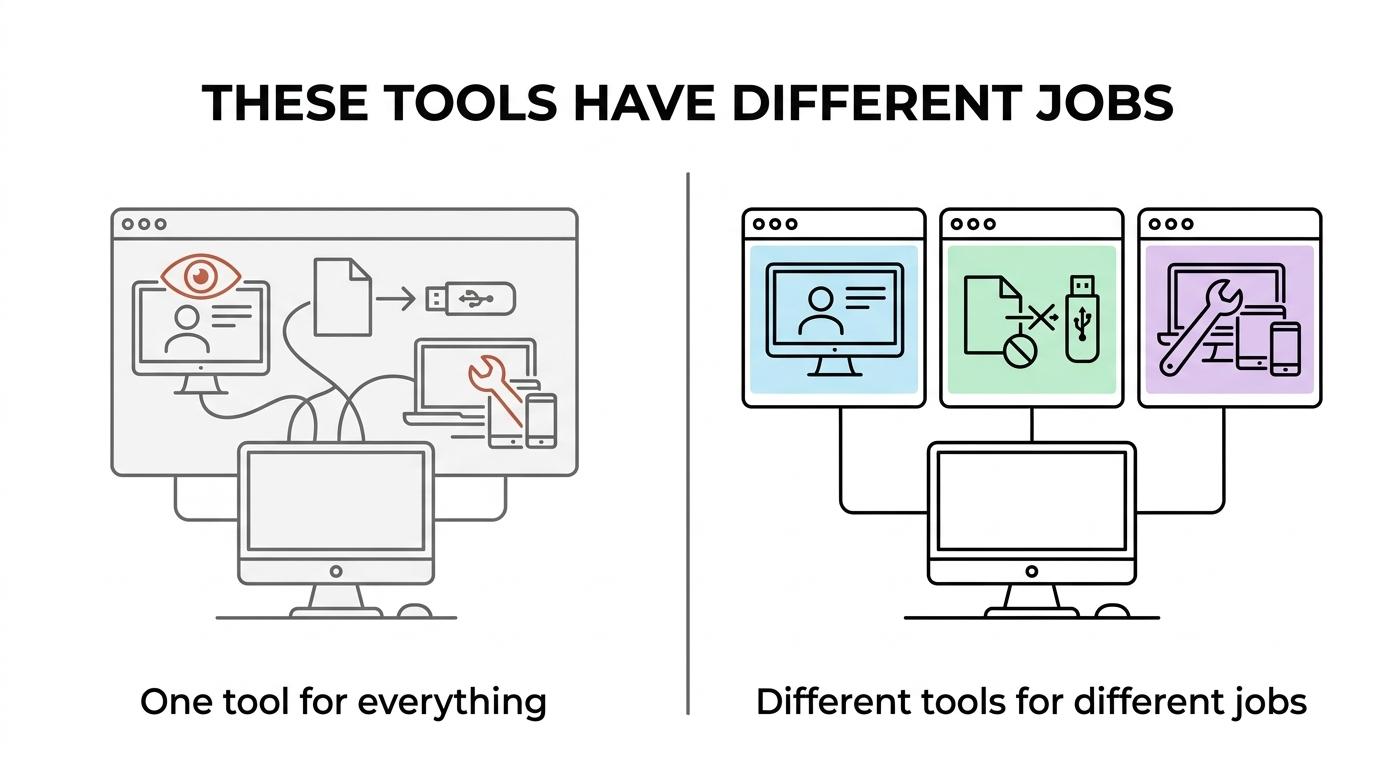
If your main question is, “What did this user do on this Windows machine?” then remote desktop monitoring and user activity monitoring are central. If your main question is, “How do we stop files leaving via USB or other channels?” then DLP matters more. If your main question is, “How do we support and maintain thousands of endpoints?” then RMM should lead the stack.
A common mistake is buying an RMM platform and expecting it to handle insider risk investigations. Most do not collect the depth of user evidence that HR, legal, or security teams later ask for.
Which features matter most for insider risk investigations and daily oversight?
The most important features are the ones that preserve evidence, enforce policy, and reduce admin effort. For Windows environments, three capabilities usually separate strong tools from weak ones.
After your first-pass comparison, check whether the product handles these core jobs well:
- Session evidence: Screenshots, video recording, timestamps, and user-linked activity history.
- Policy controls: Device control, DLP rules, removable media restrictions, and alertable violations.
- Admin workflow: Centralized console, role-based access, search, filtering, retention, and remote-control support.
Here is the practical test: if an employee copied files to a USB drive from a remote laptop and then denied it, could your team reconstruct the event in minutes? If the answer is no, the product may be fine for analytics but weak for investigations.
How do you evaluate a tool in a 14-day pilot?
A short pilot is enough if you test real use cases instead of admiring the dashboard. Run the pilot against the work your admins and investigators actually do.
Use this sequence:
- Install on mixed endpoints: Include office PCs, remote laptops, and at least one shared or RDS session host if that reflects production.
- Trigger planned events: Copy files to USB, access approved and blocked apps, launch a remote-control session, and review the resulting evidence.
- Measure admin effort: Track setup time, rule tuning, search speed, false positives, and how quickly a second admin can use the console without retraining.
Pro tip: test under imperfect conditions. Low bandwidth, sleeping laptops, VPN-only reachability, and shared-session environments often expose product limitations faster than a polished demo ever will.
A free trial is useful only when success criteria are written in advance. If not, the loudest stakeholder often decides the outcome based on screenshots or visual polish instead of fit.
How should you handle privacy, compliance, and policy design?
You should treat privacy and compliance as design choices, not cleanup tasks after deployment. Clear purpose, role limits, and documented retention make monitoring programs easier to defend.
Start with policy clarity. Define what is being monitored, which devices are in scope, who can review data, and which events justify a deeper investigation. In regulated environments, role separation matters because the same person should not always collect, review, and approve access to sensitive monitoring data.
Use a simple implementation path:
- Policy first: Write acceptable use, monitoring notice, investigation triggers, and retention periods before broad rollout.
- Access by role: Limit console visibility by admin function, business need, and review authority.
- Audit the process: Check who accessed evidence, why they accessed it, and whether retention settings match policy.
Common misconception: the main compliance risk is the software itself. In many cases, the bigger risk is inconsistent policy, excess access, and unclear retention.
What licensing and administration details change total cost?
Licensing model, console design, and session coverage change total cost more than the headline price. For Windows teams, admin hours and false tooling overlap often matter more than per-seat sticker shock.
OctoWatch is notable here because it uses floating licenses based on active tracked users, which can fit organizations with shift-based usage patterns better than fixed seat models. That is a different cost profile from tools that charge for every named user, every admin, or every device regardless of activity.
Also check what “user” means in practice. In RDS or Terminal Server environments, some vendors count devices while others effectively count sessions or named workers. If you misunderstand that before procurement, your budget can break after rollout.
A final cost warning: if you buy one tool for remote control, another for time tracking, and a third for DLP, integration and review effort become part of the spend. A more unified Windows platform may cost less to operate even if its license price is not the lowest on day one.
When should you avoid buying a remote desktop monitoring platform?
You should avoid it when your problem is purely remote support, purely patching, or purely attendance logging. In those cases, a narrower tool may be the better purchase.
If your team only needs ad hoc admin access to endpoints, then an enterprise remote support product is likely enough. If your real gap is software deployment and patching, prioritize endpoint management. If leadership only wants payroll time entries, a dedicated time-tracking tool may be simpler and less intrusive.
The right moment to buy a full remote desktop monitoring platform is when visibility, policy enforcement, and investigations start to overlap. That usually happens when telework is normal, compliance review is active, or insider risk cases need evidence that simple access tools cannot provide.