
Paralarva Time Tracker
Free Chrome extension that tracks active and idle time per website. Categories, heatmap, and a day timeline. Everything stays on your computer. No account. No cloud.
- Free
- No account
- Stays on your PC
- Easy to use
What Paralarva does
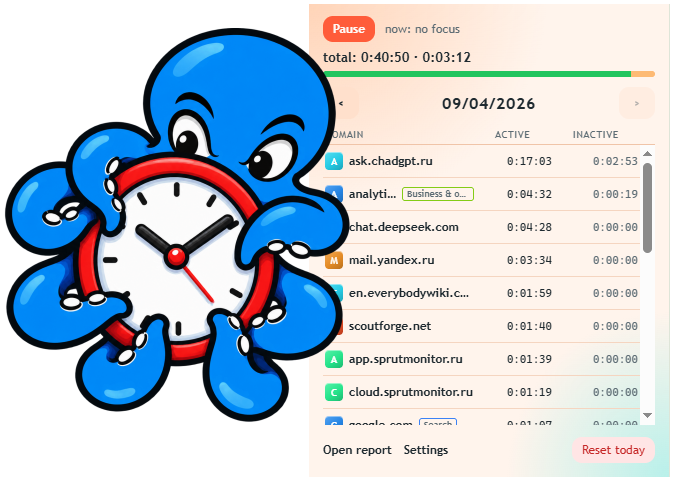
Paralarva Time Tracker is a free Chrome extension that shows where your browser time goes. It tracks active and inactive (idle) time by website, with categories, a heatmap, and a day timeline. No account required, and nothing gets uploaded to the cloud.
At the end of the day, you still have a pile of tabs open and only a rough idea of how you spent the time. A lot of website timers just count how long a tab was open. That pads the numbers with background tabs, windows you were not looking at, and time you walked away.
Paralarva only counts the active tab in a focused Chrome window, and it splits that time into active and inactive (idle). If you turn on the audible-tab option, a focused video can still count as active while you are idle. Data stays in Chrome local storage on your computer. No account, no cloud sync, no ads, and no site blocking.
It is a free personal tool from the team behind OctoWatch. It is not employee monitoring. It does not watch other people, and it does not send your browsing activity to a company dashboard.
How Paralarva is different
For anyone who wants a clear read on Chrome time without signing up for another cloud tracker.
Accurate time
Active and inactive, side by side
You see both columns. Open-tab timers inflate the numbers. Tools that only keep active time drop idle entirely. Paralarva keeps both.
Privacy
Free, and stored on your computer
Stats stay in Chrome local storage. No sign-up, no paid sync plan, no ads. Uninstalling the extension removes its data from the browser.
Reports
Categories that stay private
Starter categories, how much of your active time was productive, a heatmap, and a day timeline—all on this computer, for you.
Control
Pause, ignore, export
Pause shows OFF on the badge. Ignore list, history retention, CSV export, and JSON backup. The UI is available in English, Russian, German, Spanish, Italian, and Simplified Chinese.
Boundaries
Personal use, not a team monitor
It does not block sites, take screenshots, log keystrokes, or give managers a team console. If you need monitoring on Windows work computers, use OctoWatch instead.
Setup
Install and browse
After Chrome installs it, pin the icon and keep browsing. Open the popup when you want to see the numbers.
What counts as browsing time
Time falls into three buckets. When Chrome stays focused but you go idle, that stretch is labeled inactive.
Active
You are using the page
Chrome is focused, the tab is the active http(s) tab, and the system sees keyboard or mouse activity. That time goes in the active column.
Inactive (idle)
Chrome is focused, but you stepped away
You leave that focused tab alone past your idle threshold (15 seconds to 5 minutes). That time goes in inactive, unless you keep "Count audible tabs as active while idle" turned on and the tab is playing sound.
Not counted
Background, locked, or paused
Background tabs, Chrome in the background, a locked screen, Pause (badge OFF), ignored sites, and non-http(s) pages do not count.
Tracking stores the site hostname only (for example github.com, with leading www. removed). It does not store full URLs, page titles, or page content.
How it compares
Not every "time tracker" measures the same thing.
| Approach | What you usually get | Best if you want |
|---|---|---|
| Open-tab timers | How long tabs stayed open, including ones you were not looking at | A rough total of how long tabs stayed open |
| Active-only trackers | Focused active time only; idle is dropped | Active minutes only—no idle column |
| Paralarva | Active and inactive columns per site, plus categories, heatmap, and day timeline, stored on your computer | A clear read on Chrome time on this PC—no account needed |
| Website blockers | Limits, block screens, focus sessions | Blocking sites (Paralarva does not do this) |
Paralarva does not block sites, take over your new tab, or sync to a cloud dashboard.
Features
Toolbar popup, full report, and settings. All on your computer.
Popup
Today in the toolbar
Pick a day, see live status, ranked sites with active and inactive time, a small summary bar, pause (badge OFF), and one-click category assignment.
Report
Look back by day, week, or custom range
Today, last 7 days, last 30 days, a custom range, or all time. You get active share, how much of active time was productive, and daily averages when you pick more than one day.
Views
Domain or category
Switch between Domain and Category. Chart active, inactive, or total time with doughnut charts and by-day bars.
Visuals
Heatmap and day timeline
An hourly heatmap from session history on your computer, plus a day timeline when you look at a single day.
Categories
Starter tags you can edit
Built-in categories with productive, neutral, or unproductive tags. Map exact hosts or *.example.com rules. First match wins.
Control
Ignore list, retention, export
Ignore list; keep history for 30, 90, or 365 days, or forever (heatmap and timeline segments still cap at about 90 days); CSV export; JSON backup and restore; themes; and six interface languages.
Screenshots
From the toolbar popup to the full report on your computer.
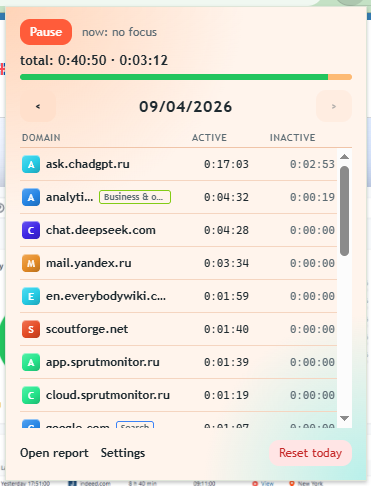
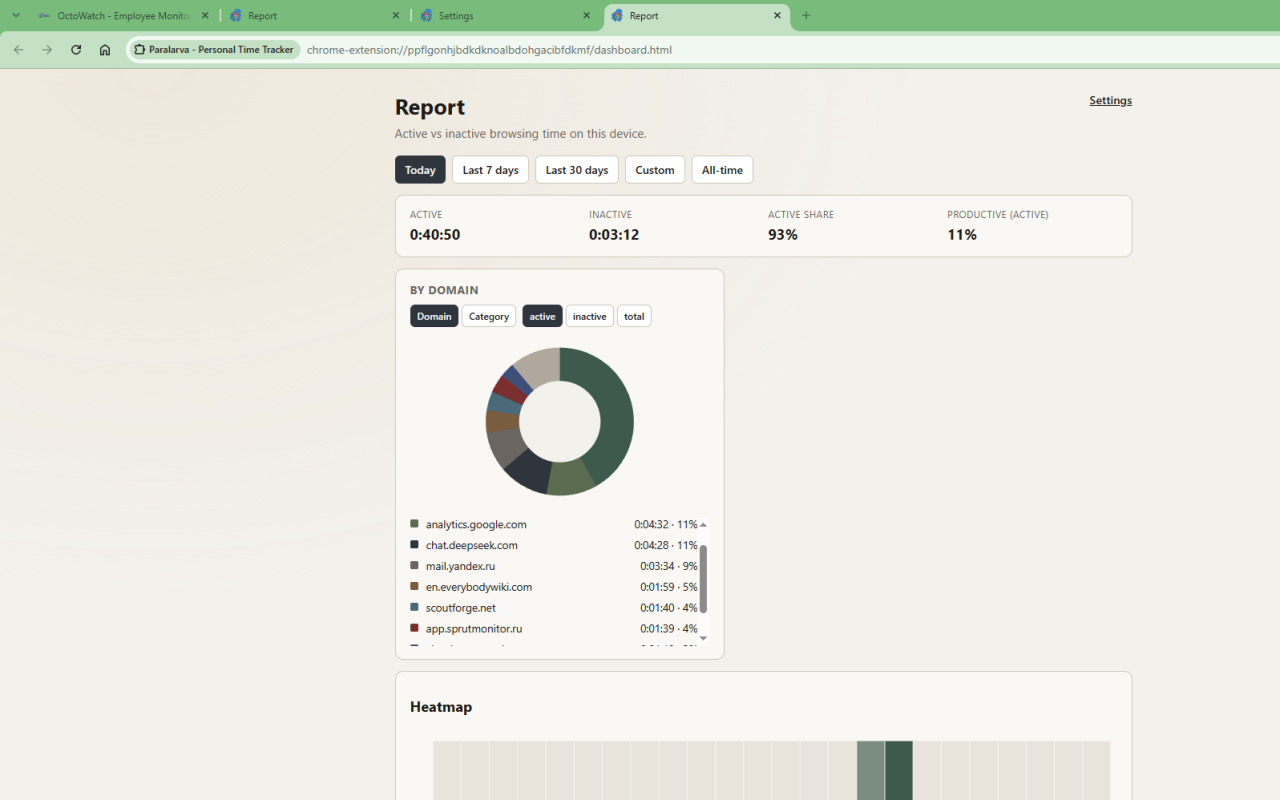
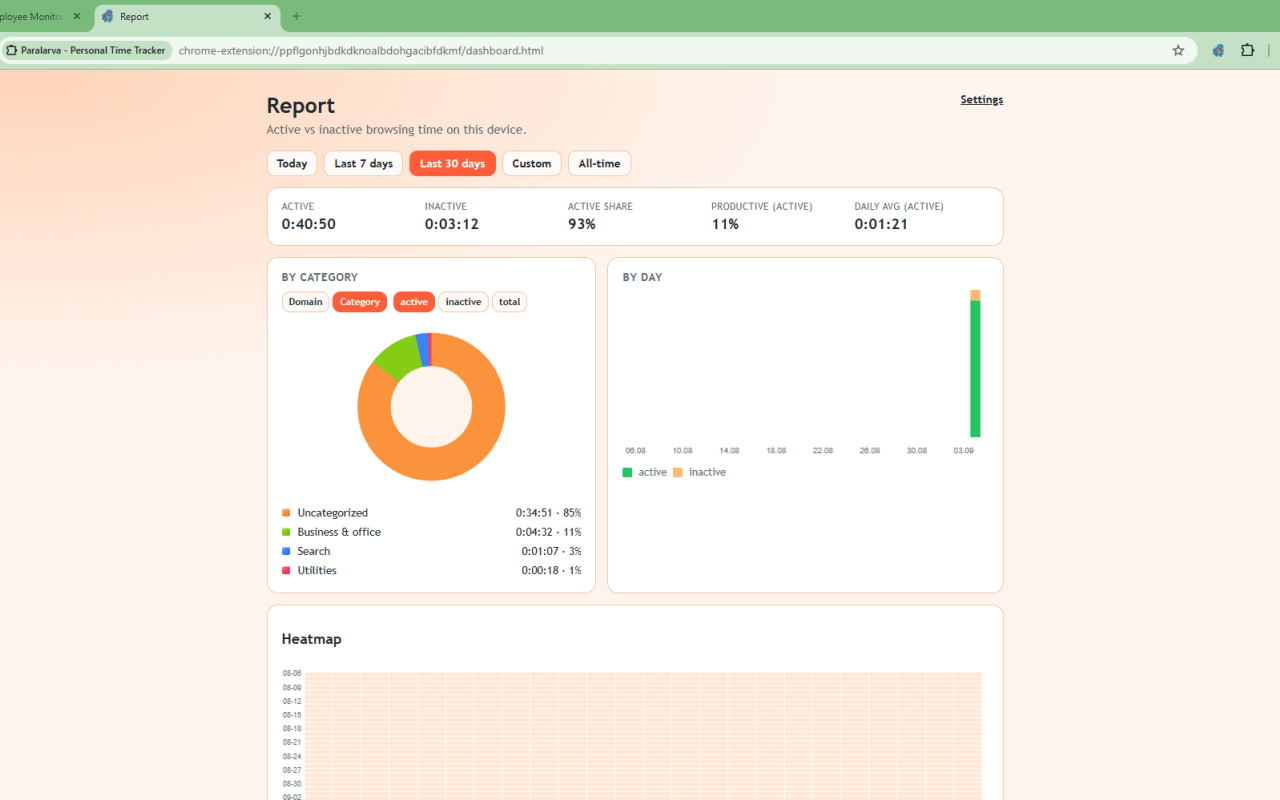
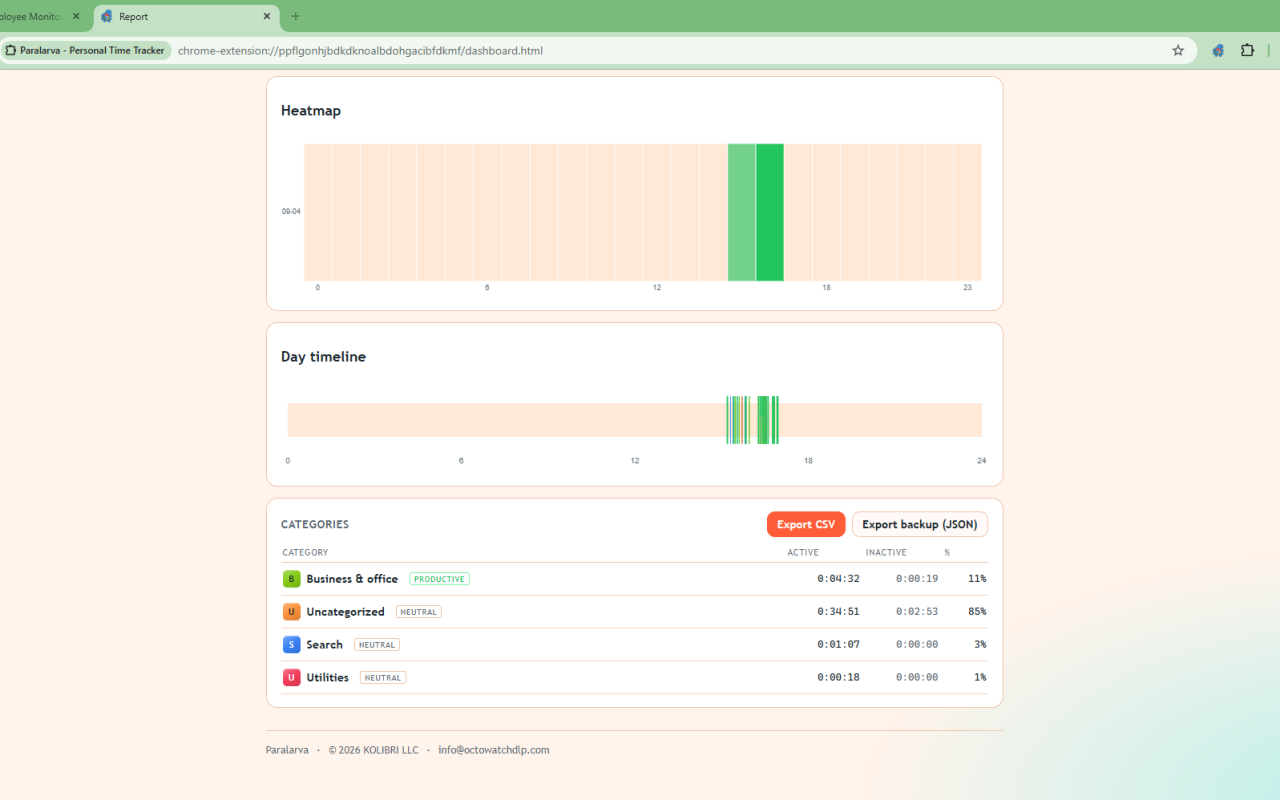
Ready to see today's active and idle time? Install free from the Chrome Web Store.
Privacy and permissions
Your browsing stats stay on your computer. Full details are on the privacy page.
On your device
Statistics and settings are stored in chrome.storage.local. No sign-in. We do not receive your browsing stats on our servers.
What we do not do
No screenshots or keystrokes. No passwords or private messages. It does not read page content. No ads. No site blocking. No hidden employee monitoring.
| Permission | Why |
|---|---|
tabs |
Read the active tab hostname so time can be assigned to the right site |
storage |
Save daily stats, session history, and settings on this computer |
idle |
Separate active use from idle time or a locked screen |
alarms |
Refresh totals and remove old history on your retention schedule |
No host permissions. No remote code. Site letter icons are drawn on your computer. Read the full Paralarva Privacy Policy.
How to get started
Install once, then browse the way you already do.
Browse
Tracking runs in the background. Only the active http(s) tab in a focused Chrome window adds time.
Check the popup
Open today’s ranked sites, pause or resume, assign a category, or open the report and settings.
Open the report
Pick a date range, switch domain or category views, check the heatmap, and open the timeline when you are looking at a single day.
Adjust settings
Change the idle threshold, audible-tab setting, ignore list, categories, retention, theme, and backups.
Export when needed
Download a CSV from the report, or export a JSON backup with day totals, session history, and categories.
Who it is for
A good fit
Freelancers, students, researchers, and anyone who spends the day in Chrome and wants a private look at where the time went.
Look elsewhere if
You need to monitor a team’s Windows PCs, capture screens, or stop data leaks. Start with OctoWatch Time Tracking or Employee Monitoring. For site blocking, use a dedicated blocker.
Common uses
Daily check
End-of-day check
Open the popup or the Today report and see which sites took active time versus idle time.
Weekly view
See patterns over a week
Use last 7 or 30 days, category view, and the heatmap to see when you browse most. No cloud habit score.
Exports
Keep your own files
CSV for spreadsheets. JSON backup if you reinstall Chrome or move to another computer. The files stay with you.
Frequently asked questions
Does it track background tabs?
No. Only the active tab in a focused Chrome window counts.
What about videos or music?
If the active tab is playing sound and “Count audible tabs as active while idle” is on (default), idle time on that tab can still count as active.
Does it store full URLs or page content?
No. It stores hostnames only (for example github.com), not paths, titles, or page content.
Is this employee monitoring?
No. Paralarva is a personal tool on your computer. It does not watch other people or upload activity to a company dashboard.
Can I pause or export?
Yes. Pause shows OFF on the badge. You can reset today or all history, export CSV from the report, and back up or restore JSON in Settings.
How long is history kept?
By default, 365 days. You can choose 30, 90, 365, or forever. Even with forever, heatmap and timeline history still caps at about 90 days.
Where do I install it?
Install from the Chrome Web Store, or email info@octowatchdlp.com.
Does browsing data leave my device?
With the default settings, the extension does not send browsing stats to our servers. Stats stay in local extension storage.
Why Paralarva?
OctoWatch is our full Windows monitoring and DLP product—the grown octopus. Paralarva is a free, personal Chrome time tracker from the same team: a small larva beside that adult. Same shop, different job. This widget tracks your own browsing time on your computer. It is not a cut-down OctoWatch agent, and it does not watch other people.