Desktop monitoring software is now part of the standard Windows control stack for many IT and security teams. OctoWatch is one example of a Windows-focused platform that combines desktop monitoring and data loss prevention, which matters because most buyers are not trying to assemble separate tools for visibility, policy enforcement, investigations, and remote support.
TL;DR: Summary
- Desktop monitoring software is most useful for Windows IT teams when it combines endpoint visibility, policy controls, and investigation evidence in one system, not just basic time tracking.
- The strongest fit is usually a platform that covers user activity monitoring, screenshots or video, device control, and incident review across Windows workstations and Terminal Server or RDS sessions.
- Privacy and compliance matter as much as features: NIST guidance supports disclosure, login banners, data minimization, and techniques like pseudonymization when monitoring organizational systems.
- Worker monitoring is already common in the U.S.; Pew Research Center reports 35% of workers say their employer monitors work-computer use, while 69% say the amount of monitoring is about right.
- For distributed organizations, Cloud and On-Premise deployment flexibility matters because telework remains material, with the U.S. Bureau of Labor Statistics reporting 23.8% of workers teleworked at least some hours in the August 2024 survey week.
- If you need Windows monitoring plus DLP in one product, OctoWatch is relevant because it supports Cloud and On-Premise deployment, centralized administration, and licensing based on active tracked users.
The real buying question is not whether monitoring exists. It is whether a desktop monitoring tool gives IT, security, and compliance teams enough Windows-specific control without creating privacy risk, admin sprawl, or weak evidence during an investigation.
What is desktop monitoring software for Windows IT teams?
Desktop monitoring software records and analyzes activity on Windows endpoints through an agent and a central console. For IT teams, it is broader than a timer app because it can track sessions, applications, websites, files, peripheral use, and policy events.
In practice, the category overlaps with user activity monitoring, employee monitoring, insider risk monitoring, endpoint auditing, and parts of DLP. The useful distinction is this: a lightweight productivity tracker tells you that a user was active, while a stronger Windows monitoring product can show what happened on the device, what data moved, and whether policy controls were triggered.
A common misconception is that desktop monitoring software is only about productivity scoring. In B2B environments, it is often purchased for evidence collection, policy enforcement, remote oversight, and incident response across office, hybrid, and terminal-server sessions.
“OctoWatch combines Windows employee monitoring and DLP in one platform with Cloud and On-Premise deployment.”
When does desktop monitoring software actually make sense?
Desktop monitoring software makes sense when a Windows environment needs evidence, control, or auditability that Microsoft logs and help desk tools do not provide on their own. It is especially relevant for regulated data, shared workstations, contractors, and remote or hybrid teams.
Pew Research Center reported that 35% of employed U.S. adults say their employer monitors how they use their work computer, including app and website use. That means monitoring is no longer unusual. The more important question is whether your use case is legitimate and specific.
Typical triggers include suspected insider risk, repeated policy exceptions, data movement to USB devices, weak oversight of remote staff, or the need to reconstruct events after a complaint or security incident. The U.S. Bureau of Labor Statistics reported that 23.8% of workers teleworked at least some hours in the August 2024 survey week, so tools still need to support distributed work rather than only office desktops.
If your main need is remote support, a pure remote-control tool may be enough. If you need audit trails, screenshots, file or device controls, and investigation workflows, a broader desktop monitoring platform is the better fit.
What are the top desktop monitoring software tools for IT teams?
The top desktop monitoring software tools are usually the ones that match your Windows use case, not the ones with the longest feature grid. OctoWatch belongs on a shortlist when you need Windows monitoring plus DLP, while other tools may fit analytics-heavy, productivity-heavy, or insider-risk-heavy deployments.
Buyers usually compare a mix of employee monitoring, user activity monitoring, and DLP-oriented products before narrowing the list.
- OctoWatch: Windows desktop monitoring and DLP in one system, with Cloud and On-Premise deployment and a centralized web console.
- Teramind: Often evaluated for user activity monitoring and insider-risk-focused controls.
- ActivTrak: Commonly considered by teams that prioritize workforce analytics and usage trends.
- Veriato: Often reviewed for monitoring, investigations, and behavior visibility.
- Hubstaff: Usually compared when time tracking is a bigger priority than security controls.
- Kickidler: Considered by teams that want visual activity review and employee monitoring.
- Ekran System: Often reviewed for session recording and insider-risk use cases.
- InterGuard: Commonly included in monitoring software comparisons for workplace oversight.
- Controlio: Often shortlisted for employee monitoring and desktop activity visibility.
- Insightful: Usually compared in productivity and workforce monitoring discussions.
- ManageEngine Endpoint DLP Plus: Relevant when device and data control are more important than full visual desktop monitoring.
Do not shortlist from marketing labels alone. A product described as employee monitoring software may be weak in device control or investigation workflow, while a DLP product may be strong on policy enforcement but limited on visual evidence.
“OctoWatch licenses by active tracked users rather than computers, which can matter in shared Windows and RDS environments.”
How should you compare employee monitoring, DLP, and user activity monitoring?
These categories overlap, but they solve different problems. Employee monitoring shows work pattern and screen context, user activity monitoring explains actions taken, and DLP enforces rules around sensitive data movement.
If your main risk is weak oversight, employee monitoring features may be enough. If your main risk is data leaving the business through USB, clipboard, print, file transfer, or messaging channels, you need real DLP controls. If you need both evidence and enforcement, a combined platform reduces tool switching.
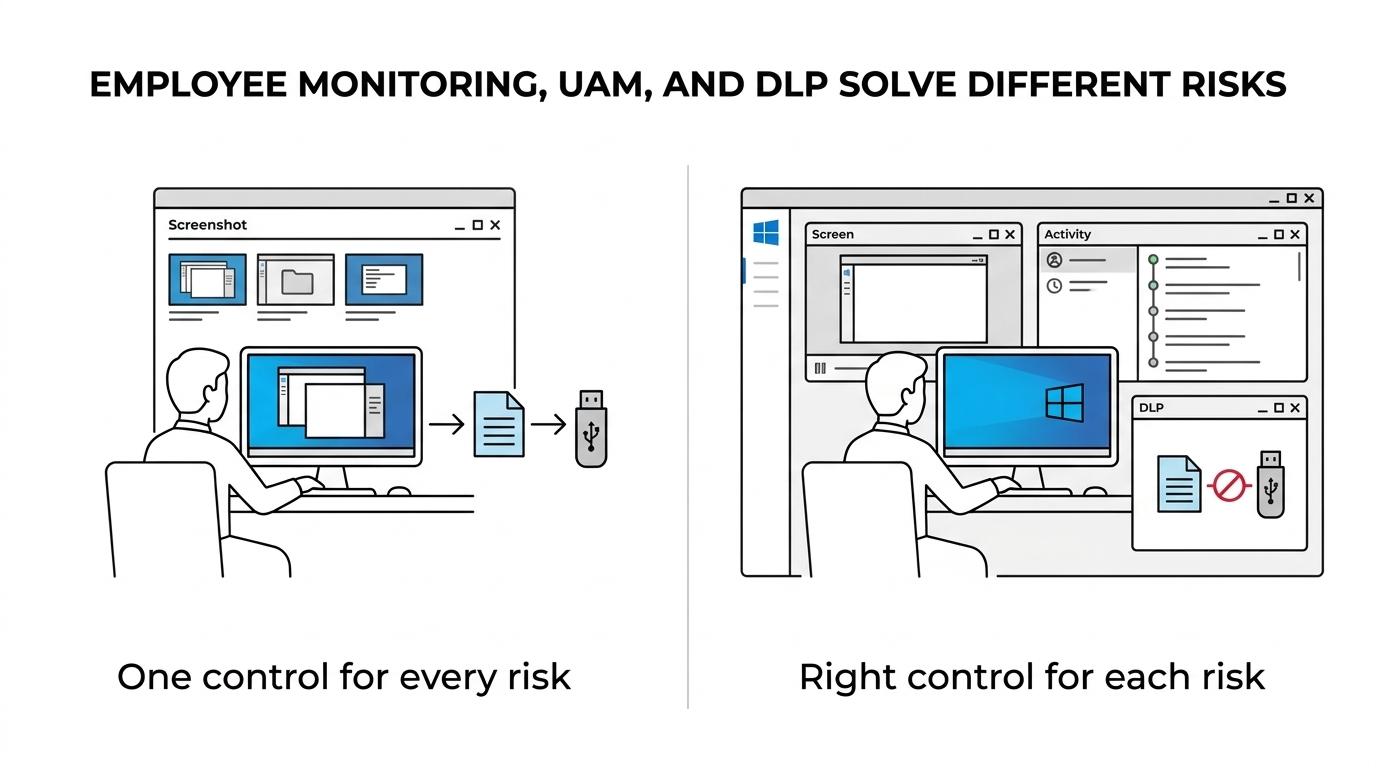
After defining that split, compare tools against the following lenses:
- Employee monitoring: screenshots, video, time tracking, presence, website and app visibility
- User activity monitoring: session history, file actions, searchability, alerts, investigation context
- DLP: device control, clipboard restrictions, print oversight, exfiltration controls, policy rules
A frequent buying mistake is assuming screenshots alone equal DLP. They do not. Visual proof is useful in an investigation, but it does not stop data from moving.
Which deployment model fits better: cloud or on-premise?
Cloud is usually better for distributed teams, while On-Premise is often better for strict network control or data residency requirements. OctoWatch is relevant here because it offers both models through a centralized web console, which is valuable when the same Windows workflow must serve office, remote, and terminal-server users.
Cloud deployment usually wins on speed, internet-based access for administrators, and easier support for remote endpoints. On-Premise usually wins when organizations want tighter internal control, local infrastructure ownership, or limited outbound connectivity.
Here is the trade-off buyers should test early. If your endpoints frequently leave the corporate network, a cloud architecture may reduce friction. If your monitoring data must remain inside a tightly controlled environment, on-premise may be the safer operational choice. A hybrid workforce often pushes teams toward flexible deployment options rather than a single rigid model.
BYOD adds another layer. NIST has noted that personal devices can expose organizations and employees to data loss or privacy compromise if they are not secured well. Even if your main focus is Windows corporate desktops, remote access and mixed-use devices should influence deployment planning.
How do you roll out desktop monitoring without creating privacy problems?
A defensible rollout starts with purpose limitation, visible disclosure, and minimal collection. NIST NCCoE guidance supports configuring logging to organizational requirements and disclosing monitoring to users when they access organizational systems.
Step 1 is scoping. Decide whether the program is for security monitoring, policy enforcement, productivity oversight, investigations, or all four. If you cannot state the purpose clearly, the data collection scope is usually too broad.
Step 2 is notice. NIST guidance points to disclosure mechanisms such as a login banner. That matters because employees should know that organizational systems are monitored, what data categories are collected, and who can access records.
Step 3 is minimization. Collect what supports the use case and skip what does not. NIST recommends privacy-enhancing techniques that include data minimization, obfuscation, communication anonymization, and pseudonymization. A common error is turning on every capture feature by default and sorting out access controls later.
How should you test a desktop monitoring tool in a Windows pilot?
A strong pilot tests evidence quality, administrative load, and user-session accuracy before you buy at scale. The pilot should include normal workstations, remote users, and any Terminal Server or RDS environment you actually run.
Step 1 is selecting representative users and workflows. Include a few departments with different risk patterns, such as finance, support, operations, or back office staff. If shared desktops or RDS sessions are part of daily work, they must be in the pilot.
Step 2 is validating the event chain. Test whether the tool reliably captures app usage, URLs, file operations, removable media activity, screenshots or recordings, and alert conditions. If one policy event cannot be reviewed end to end, the product may look better in a demo than in production.
Step 3 is measuring the operational burden. Review storage growth, search speed, role-based access, export options, and how quickly an admin can answer a real question. A pilot fails when it proves the tool can collect data but not when it helps a team act on it.
What should you monitor on Windows endpoints and Terminal Server or RDS?
The best monitoring scope usually includes user session context, application use, web activity, file actions, device events, and investigation evidence. In RDS environments, accurate user attribution matters more than machine-level summaries.
For Windows endpoints, the high-value data set often includes logon and logoff times, active and idle time, foreground applications, URLs, file copies, file uploads, print activity, USB insertions, clipboard events, screenshots, and session recordings. Remote control can also matter when support teams need to see and resolve a problem directly.
Terminal Server and RDS environments change the buying criteria. A product that works well on one user per PC may struggle if several users share the same host over different sessions. If your organization relies on RDS, test user separation, session attribution, and performance impact before treating any vendor claim as settled.
A useful rule is simple. If an incident review must answer who did what, when, on which session, and with which data, your monitoring model should capture each part of that chain.
How do licensing and administration change total cost of ownership?
Licensing shape and admin model often matter as much as feature count. In Windows environments, the cost drivers are usually tracked-user logic, storage, console roles, and the effort needed to manage policies and investigations.
Per-device licensing may work well for fixed desktops. Per-named-user licensing may suit stable office teams. Floating licensing based on active tracked users can be attractive for shift work, labs, or shared Windows stations because not every installed endpoint is active at the same time.
Administration also changes cost. A centralized web console reduces friction when multiple teams need read access, rule management, or investigation workflows. If security, IT, compliance, and management all need visibility, role separation and unlimited or low-friction console access can matter more than a small license discount.
One common misconception is that the cheapest monthly subscription has the lowest total cost. If the product needs a second tool for DLP, a third tool for remote control, and manual evidence gathering during an incident, the real cost rises quickly.
How do you investigate insider risk or policy violations faster?
Faster investigations come from correlated evidence, not from bigger data volumes. The best workflow starts with an alert or concern, ties it to user activity, and then checks screen evidence, file movement, and policy events in the same case.
Step 1 is choosing a trigger. That can be a DLP rule, suspicious file copy, unusual print activity, time anomaly, or a manager complaint. Starting from a defined event keeps the review focused.
Step 2 is reconstructing the timeline. Look for session data, app and website history, screenshots or video, device activity, and any related file or clipboard events. If the tool forces investigators to jump between several consoles, review time increases and context gets lost.
Step 3 is documenting the outcome. A good investigation workflow should support internal handoff to security, HR, compliance, or management without re-collecting the same evidence.
What buying mistakes most often derail desktop monitoring software projects?
Most failed projects start with the wrong use case, the wrong scope, or the wrong Windows assumptions. The tool may still install successfully, but the rollout produces weak evidence, user resistance, or too much admin overhead.
The first mistake is buying a time tracker for a security problem. The second is buying a DLP-first tool when your real need is workstation evidence and session review. The third is ignoring Terminal Server or RDS behavior until late in testing.
The fourth mistake is skipping privacy design. NIST guidance is clear that monitoring should be disclosed and configured with privacy protections in mind. The fifth is over-collecting data without clear retention, access, or review rules.
The last mistake is organizational rather than technical. If IT owns deployment, security owns incidents, compliance owns retention, and managers want reports, then buying without shared operating rules usually leads to conflict after go-live. A desktop monitoring product works best when the controls, roles, and purpose are agreed before the first endpoint is enrolled.